
Vertex² User Manual · PDF pages 30–31
Web Server – OSD Section
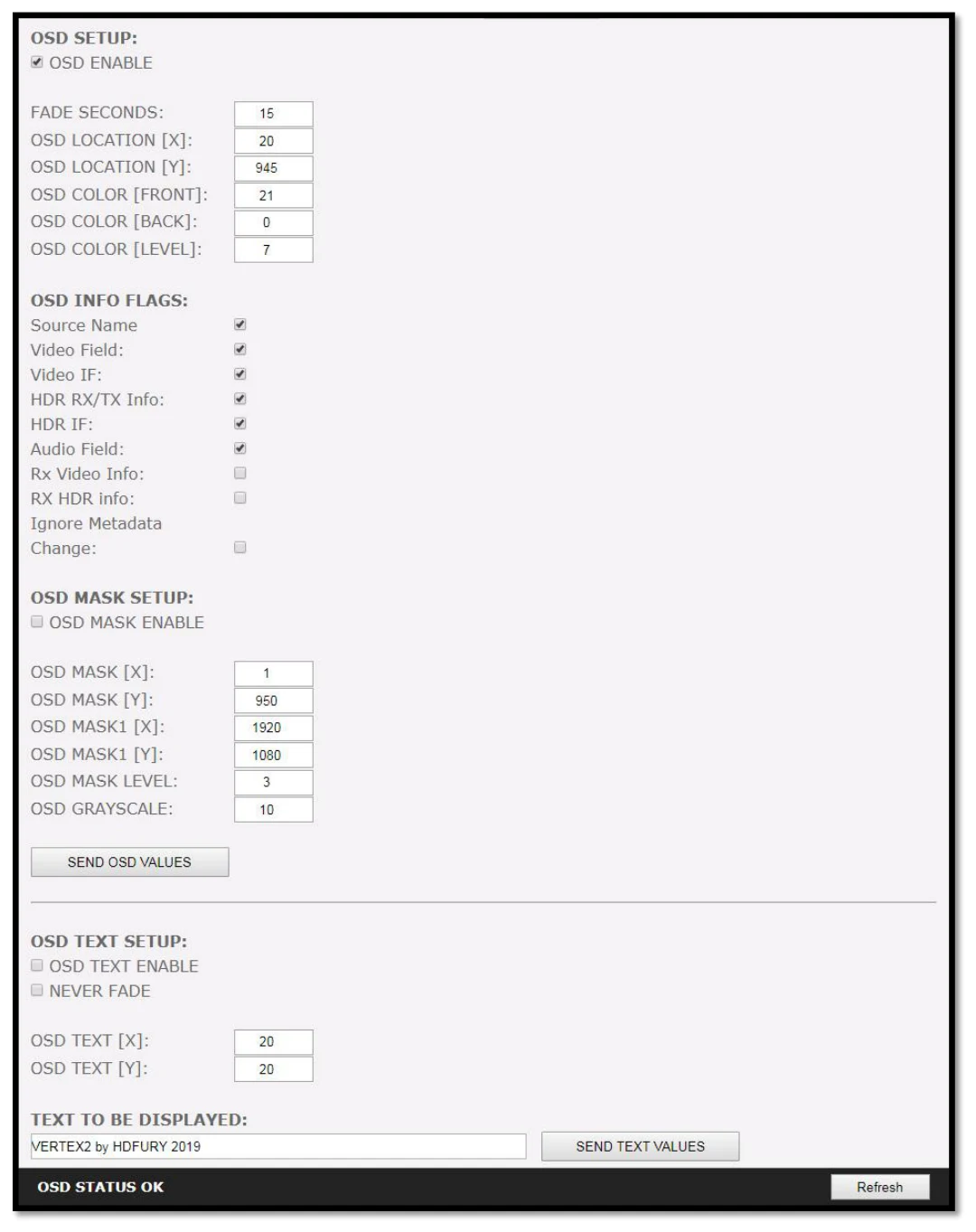
[OSD SETUP] Enable or Disable the OSD feature of Vertex².
[OSD FADE] Set the timer in seconds before OSD fade out, 0 = never (always ON)
[OSD LOCATION X, Y] Set the X and Y value of the OSD location at 1080p, values are multiplied by 2 when the stream is 4K.
[OSD COLOR FRONT, BACK, LEVEL] Set the Text Color [FRONT 0-31], Background Color [BACK 0-31] and Background transparency [LEVEL 0-7] for the OSD.
[OSD INFO] Select or unselect the information that must be displayed on your Vertex² OSD. Available options are: Source name, Video Field, Video IF, HDR info, HDR IF, Audio field, RX Video info, RX HDR info, Ignore Metadata Change.
[OSD MASK SETUP] Enable of Disable the use of OSD Mask.
[MASK LOCATION x0,y0,x1,y1] Defines the coordinates of the top left and bottom right corner of your OSD Mask at 1080p. Values are multiplied by 2 when the stream is 4K
[OSD MASK LEVEL] Select the level of transparency for your OSD Mask. Value range is from 1 to 7.
[OSD GRAYSCALE] Select the level of grayscale for your OSD Mask. Value range is from 0 to 15.
[SEND] For any changes in the above parameters, click SEND to upload them to your Vertex² unit.
[OSD TEXT ENABLE] Enable or disable the OSD Custom Text, once activated, the custom text defined in the text field will be displayed on screen.
[NEVER FADE] If you want to keep the OSD Custom text even after OSD info faded away, make sure this option is enabled.
[OSD TEXT X,Y] Set the X and Y value of the OSD Custom Text at 1080p, values are multiplied by 2 when the stream is 4K
[SEND] For any changes in the above parameters, click SEND to upload them to your Vertex² unit.
[REFRESH] Refresh the current page.